Setup and launch of the sami-crw software
Installing the Software
Download sami-core and sami-dreaam from the github repositories
$ git clone https://github.com/nbbrooks/sami-core.git
$ git clone https://github.com/nbbrooks/sami-dreaam.git
$ git clone https://github.com/nrjl/sami-crw.git
Install the latest version of Netbeans and Java 1.8. You can get Netbeans and Java as a bundle from Oracle (this will ensure automatically you will be running the 1.8 JDK with Netbeans): http://www.oracle.com/technetwork/articles/javase/jdk-netbeans-jsp-142931.html
Add all three projects to Netbeans NOTE: You will need to copy and rename the “nbproject-template” folder in each the sami-core, sami-dreaam, and sami-crw folders to get these to work as projects in Netbeans. Copy the “nbproject-template” folder into each of these files home directories and rename it “nbproject”
Make sure that Netbeans is using Java 1.8. The sami-dreaam project will not compile with an earlier version of the JDK!
To be safe build the sami-core project first Then build the sami-dreaam project then the sami-crw (sami-crw is dependent upon the other two projects)
Run the sami-crw from Netbeans to launch the application
Make sure the run setup is as follows:
- Main class: sami.ui.MissionMonitor
- VM options: -Djava.util.logging.config.file=”logging.properties” -Djava.library.path=lib/input
Note
To change the ‘run’ setup of the program in Netbeans, select the sami-crw project on the main projects window, right click and select ‘Properties.’ This will open a new dialogue box. On the menu in this box, select ‘Run.’ Use the above parameters to configure the run setup.
Starting the boat
First make sure you have successfully turned on the boat, connected the phone, and are able to get GPS, following the procedure for boat startup:
- Plug in the battery, minimum voltage is 9V
- Press the white button, the some lights should turn on and the board will beep a couple of times
- Ensure phone is connected to correct wifi network, then start
OSU Lutraapp - Click “off” which turns it “on”
- Note phone UDP: 10.214.152.186:11411 (this IP corresponds to the robotics network, the IP will vary depending upon the shared network)
- Test thrust with debug button and thrust slider
- Test GPS lock by operating Google Maps
- Close up electronics Bay – get ready for deployment
Launching the Sami-Crw software and Connecting the Boat
Note
When running the software from Netbeans for the first time, you will be prompted to select a .drm file. By default this .drm file is located in the sami-crw/plans folder. Navigate to this folder and select the .drm file.
Note
Again when running the software for the first time if the OperatorInteractionFrame does not load initially, in the Mission Monitor window, select Load Domain. You will be prompted to select a .dcf file. Navigate to sami-crw/config and select the current version’s crw.dcf file.
Once the software is launched from Netbeans, you should see 8 frames open. You can use the FrameManager to save the desired placement of these frames. The 8 frames are: OperatorInteractionFrame, MapFrame, AllocationFrame, CommFrame, Mission Monitor, Message Frame, InterruptFrame.
On the Mission Monitor Frame there are a list of actions to perform. Scroll to find the ConnectBoat.
Select ConnectBoat and hit the Run button.
Now the OperatorInteractionFrame should update to display three options: server, color, name. Fill in the server form box with the UDP from the phone. This is found in the Nexus app and is the smaller IP text, with 11411 at the end. Include the full UDP address! Also, give it a name, as it is easier to recognize later in the CommFrame. I have been naming my boats, intuitively, “boat”. When finished, hit the Done button in the OperatorInteractionFrame.
Now the Message Frame should display that the boat is connected and the CommFrame should also update to a green box with the word “boat” inside (or whatever word you chose to name the boat)
Double click on name (ie “boat”) in the CommFrame to get the Teleop Path, Point buttons activated on the map.
Select the Teleop button. A menu option should now display in the Map Frame with a options for gains on the right side and a red graphic on the left. The red dot controls the motors. Dragging it up will thrust both motors. Dragging it left or right will activate the right and left motors respectively (as seen from the stern), acting as a rudder.
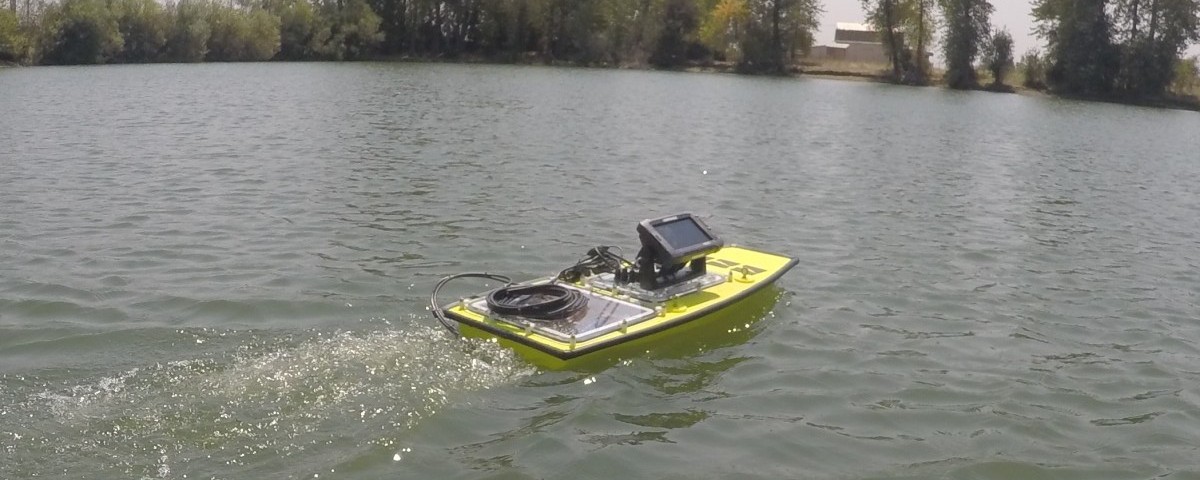
Updating the Boat Firmware
The following guide from the manufacturer is the process for restoring or updating the boat firmware:
See this guide.